
Learn about how access to AD Knowledge Portal data is governed, what information can be browsed in our public-facing data explorer, and how to request access to individual-level human data.
Access Tiers
Access to data in the AD Knowledge Portal is tiered to safeguard participant privacy and data confidentiality.
Browsing vs. Registering
Anyone can browse public content on the AD Knowledge Portal — including public wiki pages and our public project and file catalog — without registering for a Synapse account. To explore or download data, you'll need to register for a Synapse account, which requires agreeing to the Synapse Code of Conduct and Terms and Conditions of Use.
Open vs. Controlled Access Data
As a registered user, you can view and download any data on the AD Knowledge Portal that is publicly available. However, individual-level human data is considered Controlled Access Data, which requires additional protections for who can access it and how it can be used. Controlled Access data is clearly labeled with its specific conditions for use; access requires the submission of an Intended Data Use (IDU) Statement and a Data Use Certificate (DUC). Additionally, individual-level data in any form (raw, processed, derived) MUST NOT be redistributed outside the AD Knowledge Portal.
Request Access to Controlled Data
Many studies within the AD Knowledge Portal contain controlled access data. To access this data, you must submit an electronic data access request, including a Data Use Certificate (DUC).
Key things to know about Access Requests:
-
Each request only covers the submitter and their collaborators at the same institution. Collaborators at other institutions will need to submit a separate request.
-
To add new collaborators or team members, you need to update both the DUC and your electronic data access request's list of collaborators.
-
Approved access requests enable one year of access. You must submit a renewal request each year to maintain access. You will receive a reminder as your renewal date approaches. Review of your request generally takes up to two weeks. — we recommend submitting your renewal well in advance of your expiration date.
Please note: The Data Use Certificate reflects our compliance with NIH guidance on the security of online environments and the use of AI tools, specifically:
-
Use of AI tools must be described in your IDU statement (see NIH NOT-OD-25-081)
-
Data must be downloaded to a NIST 800-171 compliant environment (see NOT-OD-24-157)
Elements & Requirements of an Access Request
-
Provide the first and last name of the person serving as the lead or principal investigator (PI) of the research project.
-
Provide the full, unabbreviated name of your institution (each request can only be made for a single institution).
-
Describe your Intended Data Use (IDU) for the AD Knowledge Portal data. This statement must be 1-3 paragraphs describing the objectives of the proposed use, the study design, and the analysis plan, and must include the list of AD Knowledge Portal studies you intend to access (see the Studies page for a full list). Note: your IDU statement will be posted publicly on Synapse.
-
Provide a complete list of all users at your institution who should have access to the data — this list must match exactly with the list provided in the DUC.
-
Upload your completed DUC (you may download the current DUC template in advance).
Submitting on Behalf of a Research Group
If you submit an Access Request on behalf of your research group, you're responsible for submitting all future changes and annual renewals on behalf of your group — access requests can't be transferred to another user, and Sage Bionetworks can't submit updates or progress reports on your behalf. If the original submitter becomes unavailable, a new Access Request must be submitted by another member of the group before the expiration date.
Completing the DUC
-
Access the DUC form here, which you can download and print. The content of the DUC is non-negotiable — no changes are allowed.
-
Gather Synapse usernames and signatures from all team members at your institution who will need access to the data. The DUC may not include team members from other institutions.
-
Designate a signing official — someone at your organization who can speak to your affiliation and has good standing within the organization — to review and sign the DUC. Note: you cannot serve as your own signing official, and the signing official cannot be a user listed on the Access Request.
-
We accept a scan of a paper DUC signed with ink signatures, or industry-accepted electronic signature methods.
-
Finally…
Visit the AD Knowledge Portal DUC page and click "Request Access" to complete the data access request process, which includes submitting your IDU and uploading the signed DUC form. Expected review time is up to two weeks; once approved, data may be accessed for one year.
Common reasons requests are rejected:
-
Mismatched Synapse usernames between the DUC and the request
-
No signing official listed on the DUC
-
Missing pages in the uploaded DUC document
-
Incomplete fields for the project lead and/or institution
-
Insufficient detail in the Intended Data Use (IDU) statement (IDUs should be 1-3 paragraphs addressing: What do you want to do? Why are you doing it? How do you want to do it?)
Annual Renewal / Off-cycle Addition of New Team Members
You must submit an annual access renewal in advance of your expiration date. You'll receive two email reminders before your access expires — follow the instructions in the reminder email, or the instructions below.
If you need to add new team members to your Access Request before it’s time to renew your existing request, you may do so through this same process.
Note: This process can only be completed by the Synapse user who originally submitted the request. If the original submitter is unavailable, a new access request must be submitted instead.
-
Confirm your existing DUC matches the current DUC template version (found here). If it's outdated, you must complete and submit the latest version.
-
Gather Synapse usernames and signatures from any/all *new* collaborators *at your institution*.
-
*Remove any collaborators* who no longer need access from both the request and the DUC. To revoke access for any collaborator, clearly strike or remove their name from the form.
-
Verify the request content is accurate. Update your Intended Data Use statement to reflect your progress, and update your study list if it's changed.
-
Ensure the data requesters listed in the request match the DUC exactly.
-
Finally…
Visit the AD Knowledge Portal access request page and click Update Request. Upload the updated DUC and submit.
You'll receive a decision within two weeks. Once approved, access will be reneed for everyone listed for another year.
Access Request History
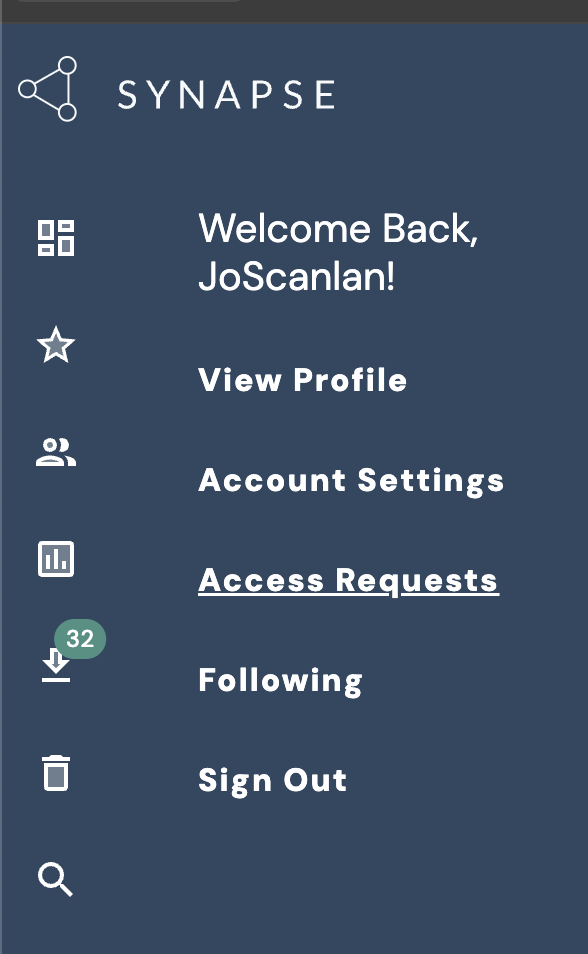
Your Access Request History, including the status of your current Access Request, can be reviewed from your Synapse profile. From the ‘Access Requests’ tab, you can review every Access Request you have ever been named in: both those you've submitted yourself, and requests submitted by others which you were named as a requester on.
Additional DUC Support
If you have questions or issues related to a DUC, contact Sage Bionetworks' Access & Compliance Team (ACT) via the Access & Compliance Team portal.